Back Up Your BitLocker Recovery Key
Back Up Your BitLocker Recovery Key
A BitLocker recovery key is needed when BitLocker can’t automatically unlock an encrypted drive in Windows. This key, which is a 48-digit number, is used to regain access to the drive. You might be prompted for the BitLocker recovery key during startup, due to a security risk or hardware change. You might need to provide a BitLocker recovery key for data or external drives, for example if you forgot the unlock password.

Included also is a video guide at the bottom of the page.
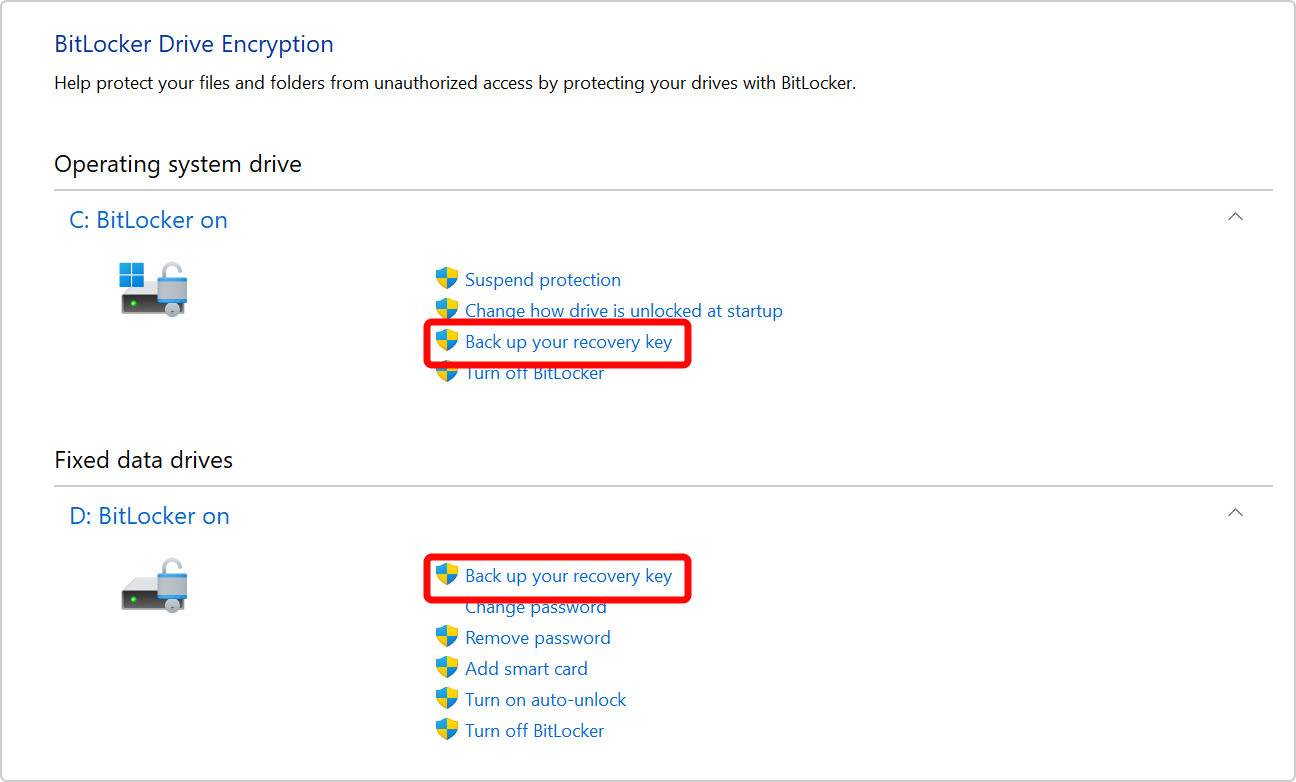
From Start , type BitLocker and select Manage BitLocker from the list of results
In the BitLocker app, select Back up your recovery key next to the drive you want backup
Select where you want the key backed up
Save to your Microsoft Account - This will save the key in the recovery keys library of your Microsoft Account
- Save to a USB flash drive- If you have a flash drive handy you can save the key to it. If your device asks for the recovery key in the future, insert that USB drive and follow the instructions. The key takes only a couple of KB of space so the drive doesn't have to be large.
 (Make sure this drive is somewhere safe, to prevent thief's from having easy access)
Contact support:
If Ghost Systems manages your Office 365 products. Do contact us via our normal support channels, or submit a ticket via the Ghost icon. Reference this article so we know what has been attempted already.
Additional resources:
Related Articles
Bitlocker Recovery Key Process
Bitlocker Recovery Process A BitLocker recovery key is needed when BitLocker can’t automatically unlock an encrypted drive in Windows. This key, which is a 48-digit number, is used to regain access to the drive. You might be prompted for the ...